Install an APK on an Android Device
With Capawesome Cloud, you can install an APK directly on a physical Android device — similar to how it works in platforms like Loadly or Diawi. All you need to do is create a build, allow installations from unknown sources, and scan a QR code or tap a download link.
This guide walks you through the entire process using Capawesome Cloud, Capacitor, and your Android device.
Create the Build
First, trigger a new Android build in Capawesome Cloud:
- Navigate to the Builds page of your app in Capawesome Cloud.
- Click on the Build from Git button.
- Select the Git reference (branch, tag, or commit) you want to build from.
- Select Android as the platform.
- Select Debug or Release as the build type.
- Click on Build to start the build process.
Wait for the build to complete. You can monitor the build progress on the build details page.
Signing Certificates
Release builds require a signing certificate (keystore). If you haven't set one up yet, refer to the Android Signing Certificates documentation.
For more detailed instructions on creating builds, refer to the Getting Started guide.
Allow Installations from Unknown Sources
Before you can install an APK from outside the Google Play Store, you need to allow installations from unknown sources on your Android device. The browser you use to download the APK (e.g. Chrome) must be explicitly allowed to install apps.
On Android 8.0 (Oreo) and later, you need to grant the install permission on a per-app basis:
- Open Settings > Apps > Special app access > Install unknown apps.
- Select the app you will use to download the APK (e.g. Chrome).
- Enable Allow from this source.
Device-specific path
The exact path may vary depending on your device manufacturer. On Samsung devices, the setting can be found under Settings > Biometrics and security > Install unknown apps.
On Android 7.x (Nougat) and earlier, there is a single global toggle:
- Open Settings > Security.
- Enable Unknown sources.
Install the App
Once the build is complete, you can install the APK on your device:
- Open the build details page in Capawesome Cloud.
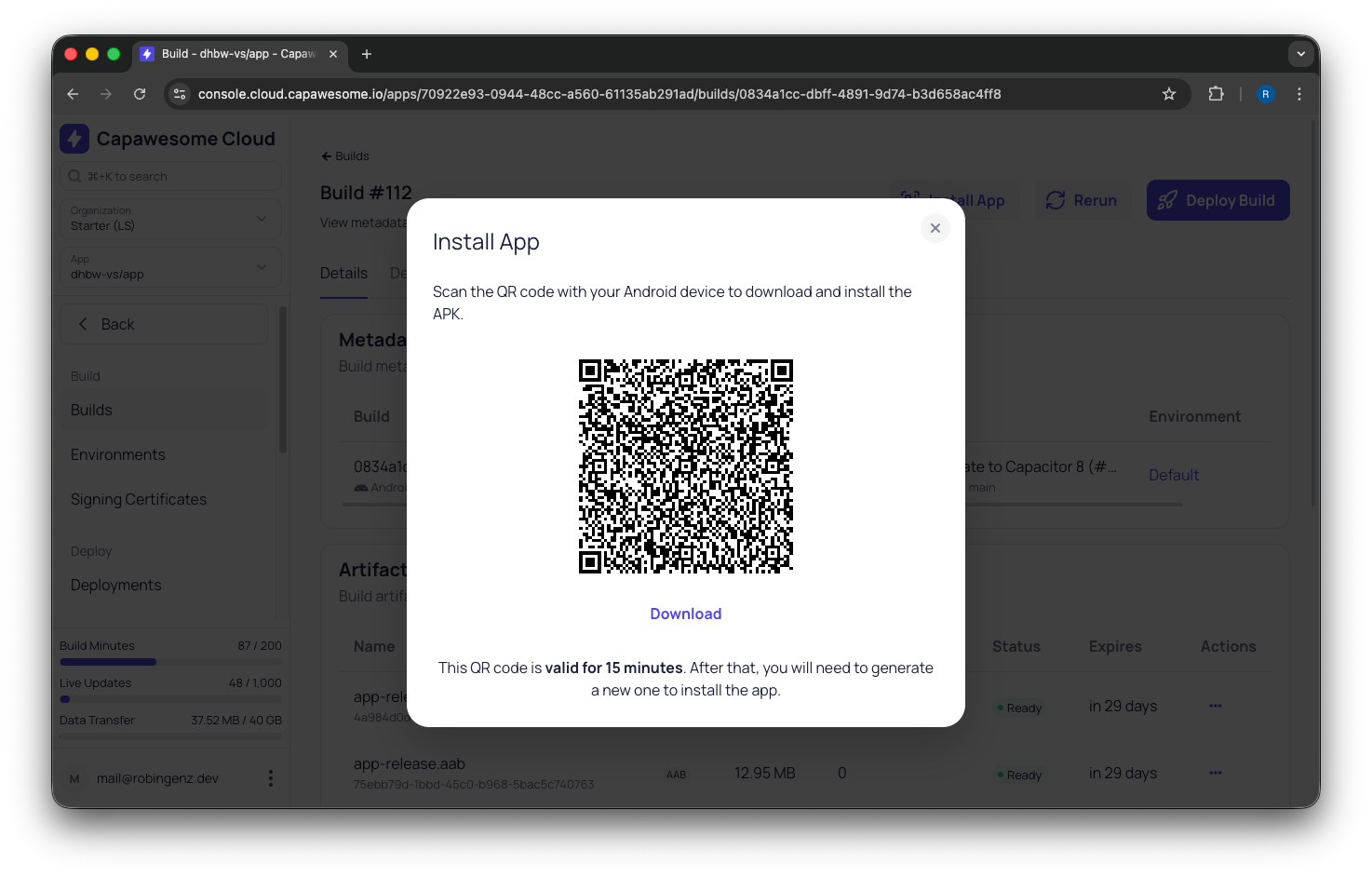
- Click the Install App button.
- Scan the QR code with your Android device or tap the Download button if you are already on your device.
- Open the downloaded APK file to start the installation.
Google Play Protect
Google Play Protect may show a warning about the app being from an unknown developer. You can dismiss this warning to proceed with the installation. This is a normal security feature of Android and does not indicate an issue with your app.