Forced Channel Assignments for Capawesome Cloud Devices
Sometimes you need direct control over which Live Update channel a specific device uses. With forced channel assignments, you can now override the SDK-selected channel on any device — whether you're debugging an issue, testing a new release, or managing a customer's device manually.

What's New
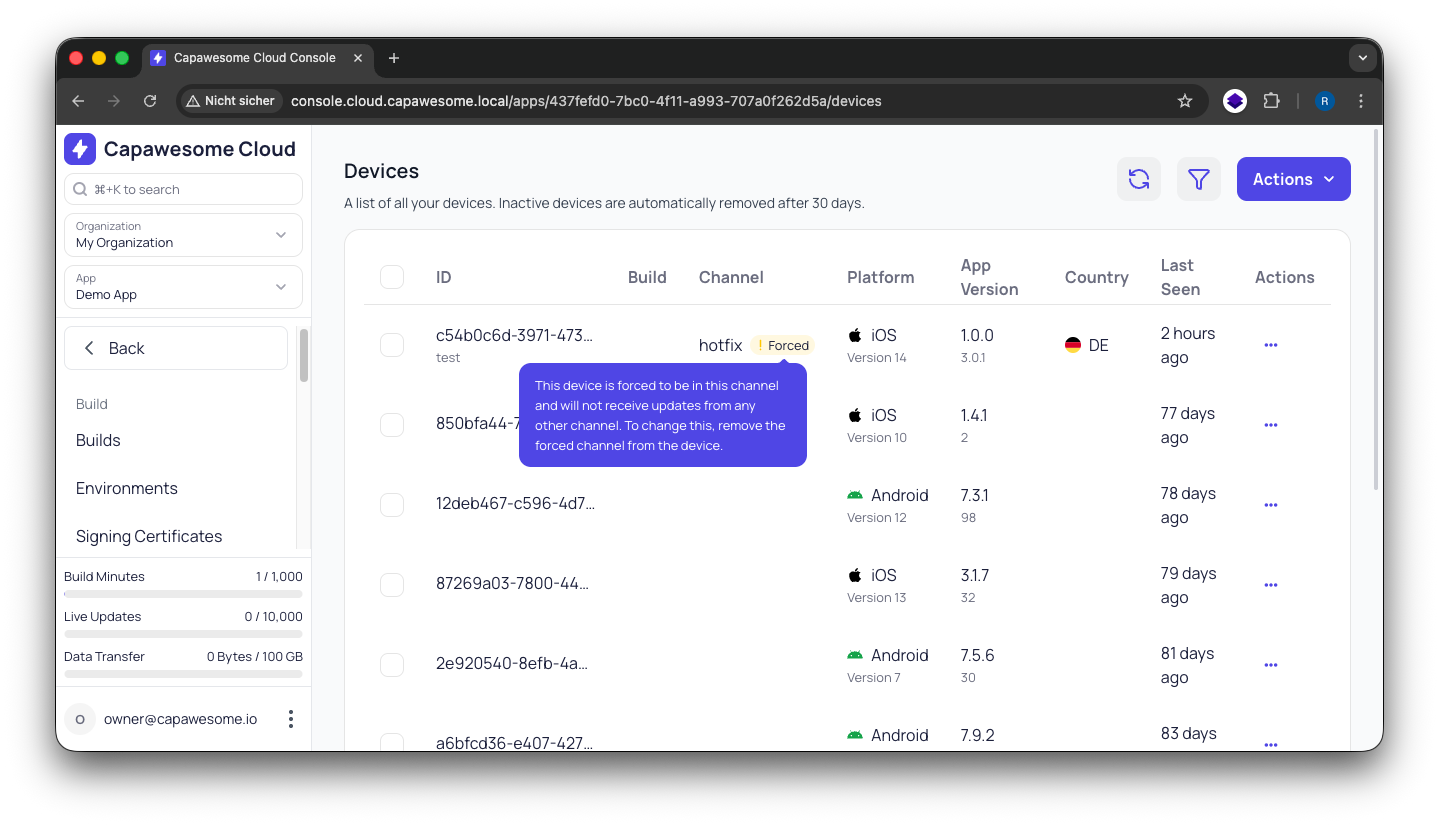
You can now force a specific Live Update channel on individual devices directly from the Capawesome Cloud Console or via the Capawesome CLI. When a channel is forced on a device, the channel set by the Live Update SDK is ignored and the device receives updates exclusively from the forced channel instead.
You can remove the forced channel at any time to return the device to its normal SDK-driven behavior.
When to Use It
Forced channel assignments are useful in several scenarios:
- Debugging and development: Push a specific device to a
devorbetachannel to test a new bundle before rolling it out to all users. - Customer support: Assign a customer's device to a hotfix channel to deliver a targeted fix without affecting other devices.
- Manual management: Take full control over which channel a device uses, independent of what the app itself selects via the SDK.
How It Works
Normally, the Live Update SDK on each device determines which channel to use — either through the default configuration or by calling setChannel(...) at runtime. When you force a channel on a device, this SDK selection is completely bypassed. The device will only receive updates from the forced channel until you explicitly remove the override.
This means you don't need to make any changes to your app code or deploy a new build. Everything is controlled server-side through Capawesome Cloud.
Using the CLI
Force a device to use a specific channel:
npx @capawesome/cli apps:devices:forcechannel \
    --app-id <app-id> \
    --device-id <device-id> \
    --channel <channel-name>
Remove the forced channel to return to normal SDK behavior:
You can find the device ID in the Capawesome Cloud Console on the Devices page of your app.
Get Started
Forced channel assignments are available now for all Capawesome Cloud users. Check out the Devices documentation for detailed instructions, or try it out in the Capawesome Cloud Console right away.
Conclusion
Forced channel assignments give you precise, per-device control over Live Update delivery — without touching your app code. Whether you're debugging on a test device, helping a customer, or simply want to manage channels manually, this feature makes it straightforward.
For more on managing Live Update channels, check out the Channel Surfing guide. If you have any questions, feel free to reach out on the Capawesome Discord server. For the latest updates, subscribe to the Capawesome newsletter.