How to Distribute iOS and Android Apps to Testers
Getting a test build onto a tester's phone should be simple — but if you've ever dealt with TestFlight review delays, Firebase profile installations, or setting up OTA manifest files by hand, you know it's anything but. In this guide, we'll walk through how to distribute iOS and Android builds to testers and stakeholders with just a link or QR code, no app store submission required.

The Problem with Test Build Distribution
Distributing test builds is a common task for any mobile development team, yet the process is often more complex than it needs to be.
TestFlight is Apple's official beta testing tool, but external testing requires a Beta App Review that can take anywhere from a few hours to several days. Internal testing is limited to 100 users who need App Store Connect roles, and every tester must install the TestFlight app first.
Firebase App Distribution supports both platforms but still relies on ad-hoc distribution for iOS, which means the same 100-device limit and UDID requirements apply. Testers also need to install a Firebase device profile before they can download builds, which adds friction.
Platforms like Diawi and Loadly make it easy to share a quick download link, but they typically lack CI/CD integration, version tracking, and team management features.
And with Microsoft App Center having shut down in March 2025, many teams are looking for a reliable replacement.
What most teams actually want is straightforward: build the app, share a link, and let the tester install it with a single tap.
Over-the-Air Installation with Capawesome Cloud
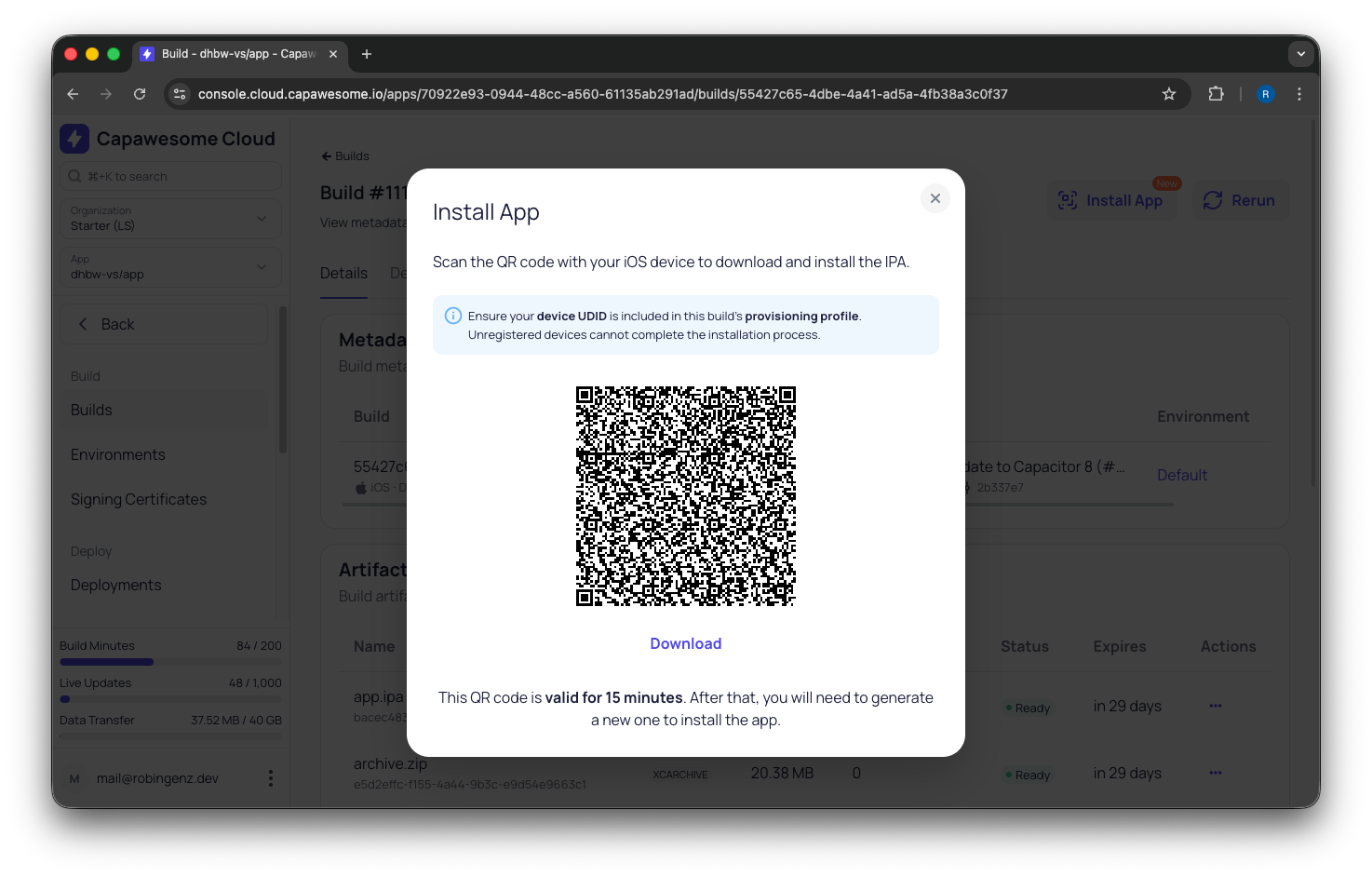
Capawesome Cloud includes a built-in app installation feature similar to what platforms like Diawi and Loadly offer — but fully integrated into the build pipeline. Every iOS development, ad-hoc, or enterprise build and every Android build displays an Install App button that lets testers install the app directly on their device with a single tap. No additional configuration or setup is required, and the feature is available at no extra cost.
The process works the same on both platforms: once a build is complete, you share a link or QR code with your tester, and they scan it to install the app. Let's walk through the specifics for each platform.
Distributing Android Apps
Android distribution is the simpler of the two platforms since there's no device registration required.
Create a Build
First, trigger a new Android build in Capawesome Cloud:
- Navigate to the Builds page of your app.
- Click Build from Git and select a Git reference (branch, tag, or commit).
- Select Android as the platform and choose a build type (Debug or Release).
- Click Build to start the build process.
Signing Certificates
Release builds require a signing certificate (keystore). Refer to the Android Signing Certificates documentation for setup instructions.
Install the App
Once the build completes:
- Open the build details page in Capawesome Cloud.
- Click the Install App button.
- Scan the QR code with the Android device or tap Download if you're already on the device.
- Open the downloaded APK to start the installation.
Unknown Sources
Android requires you to allow installations from unknown sources before installing an APK from outside the Play Store. See our Install an APK on an Android Device guide for device-specific instructions.
Google Play Protect
Google Play Protect may show a warning about the app being from an unknown developer. You can dismiss this warning to proceed with the installation.
Distributing iOS Apps
iOS distribution requires a few extra steps due to Apple's code signing requirements. The tester's device must be registered in your Apple Developer account and included in the provisioning profile used to sign the build.
Register the Device
Every iOS device has a unique identifier (UDID) that must be registered before it can install a test build.
- Find the device UDID using the iOS UDID Finder tool.
- Register the device in the Apple Developer Portal under Devices.
- Update your provisioning profile to include the new device and re-upload it to Capawesome Cloud.
Device Limit
Apple limits the number of registered devices to 100 per product family (iPhone, iPad, etc.) per membership year. Disabling a device does not free up a slot.
For detailed steps, refer to our Install an IPA on an iOS Device guide.
Create a Build
- Navigate to the Builds page of your app.
- Click Build from Git and select a Git reference.
- Select iOS as the platform.
- Select Development, Ad Hoc, or Enterprise as the build type.
- Select a signing certificate with a provisioning profile that includes the tester's device.
- Click Build to start the build process.
Install the App
Once the build completes:
- Open the build details page in Capawesome Cloud.
- Click the Install App button.
- Scan the QR code with the iOS device or tap Download if you're already on the device.
- The app will be installed on the device.
Automating the Process
Manually triggering builds every time you want to share a test version gets old fast. With Automations, you can configure Capawesome Cloud to automatically trigger a build whenever you push to a specific branch or create a tag. For example, you could set up an automation that builds a new iOS and Android version on every push to main or whenever a tag matching v* is created.
Combined with notification integrations, this creates a hands-off distribution workflow: a developer pushes code, Capawesome Cloud builds the app, and your QA team gets notified in Slack, Discord, or Microsoft Teams that a new build is ready to install. No one needs to open the Console, run a CLI command, or ping someone on the team — the build link is right there in the notification.
Conclusion
Distributing test builds to testers doesn't have to involve long review waits or complicated setup. With over-the-air installation, you can go from a finished build to a running app on a tester's device in minutes — on both Android and iOS.
If you want to dive deeper into the installation process for each platform, check out our step-by-step guides for Android and iOS. If you have questions, join the Capawesome Discord server or subscribe to the Capawesome newsletter to stay updated.